

Where You Can Add Documents
Tour Documents- Tour Documents are available for users on the Mac App
- Best for files that apply to multiple dates or the full run.
- Each day on your tour has a dedicated documents folder.
- Ideal for venue, or day specific information.
These documents are accessible to all users on mobile, who have permission to view documents.
Common Documents to Upload
Some commonly saved documents include:- Stage Plots
- Tech Packs
- Input Lists
- Parking Maps
- Venue Information Sheets
- Catering Menus
- Local Load-In / Load-Out Instructions
- Production Notes or PDFs from the Venue
How to Add a Daily Document
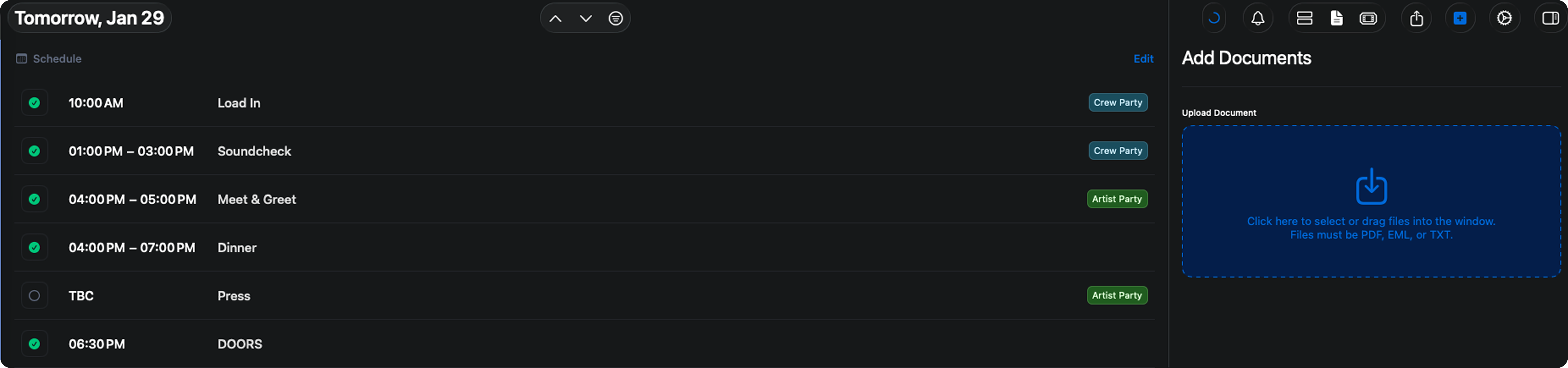
- Navigate to the Day where you want the document stored
- Open the Documents section or type cmn + d
- Click on the Upload Document box or drag Documents directly into this section
- Upload your file and give it a clear, descriptive name
Viewing Documents on Mobile
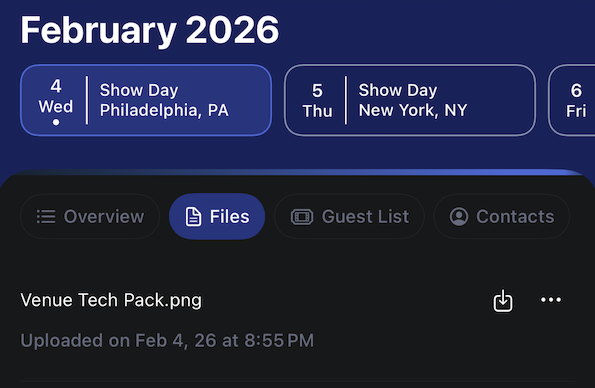
Show Documents added to the Day View are viewable in the Daysheets mobile app. This allows crew members to quickly access critical files, such as stage plots, parking maps, or venue info directly from their phone on show day- To view, simply go to the Day View and go to the Files section
- Here you can view the documents for that day
Editing & Downloading Documents
After a document has been uploaded, you can:- Download the file at any time
- Replace or update the file if a newer version becomes available
- Keep documents current without changing links or re-uploading