

Creating a Template
- Once you have created a schedule in the full schedule edit view, look for the templates dropdown in the bottom right hand corner next to the Save Schedule button. Expand the menu and select Save as Template.
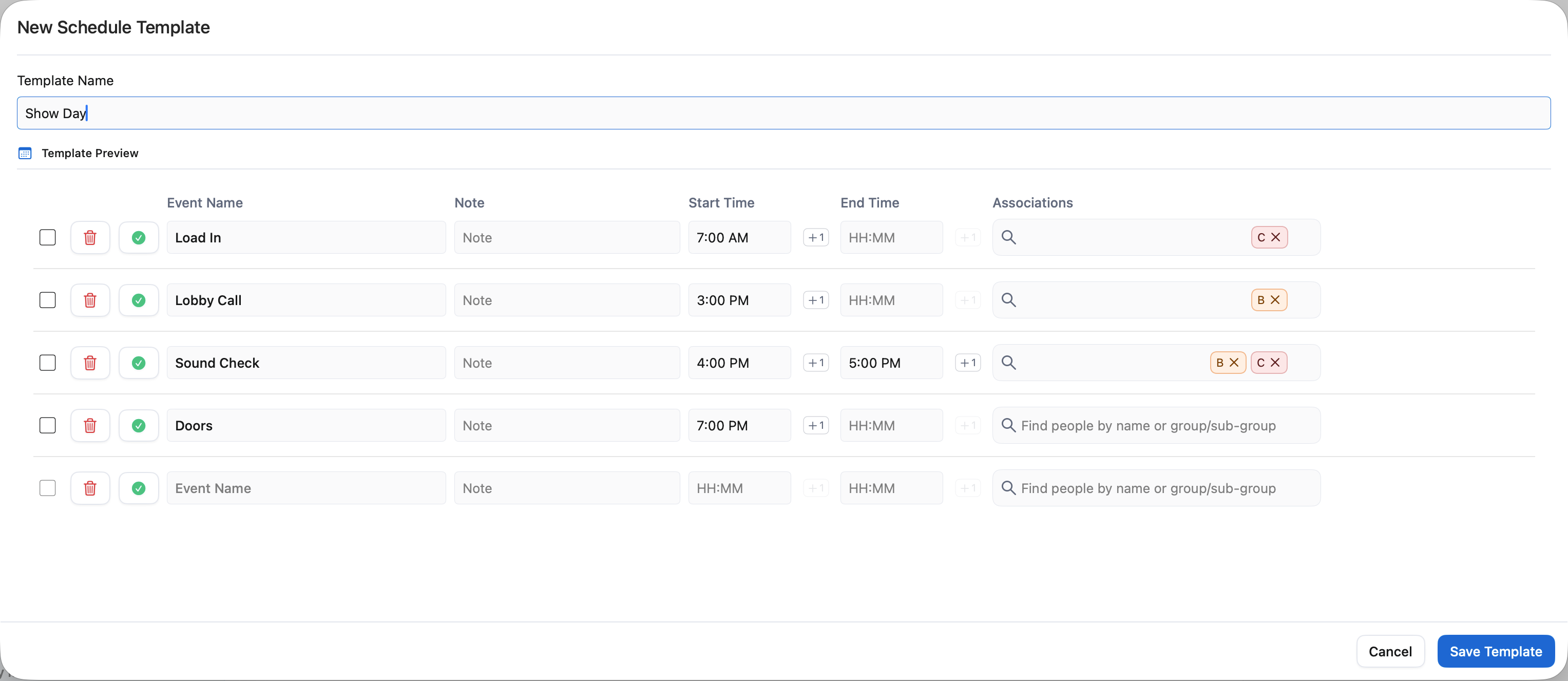
- Once you’re in the template create view, give your your template a name, such as “7PM Doors”, or “Show Day”.
- Next make any adjustments to the schedule as you see fit. Templates will store the Event name, notes, start & end times, along with associations.
- When you’re ready click Save Template. This template will be saved to the tour, for you and your team members to apply to other dates on this tour.
Applying a Schedule Template
Once you’ve saved a template, it’s simple to apply that template to any other day on tour. To get started, navigate to the date on your tour where you want to apply the template.- Click on the Edit button above the schedule to get into the full schedule edit view
-
Navigate to the Templates dropdown in the bottom right, and select Apply a Template. This will bring up the template selection view:
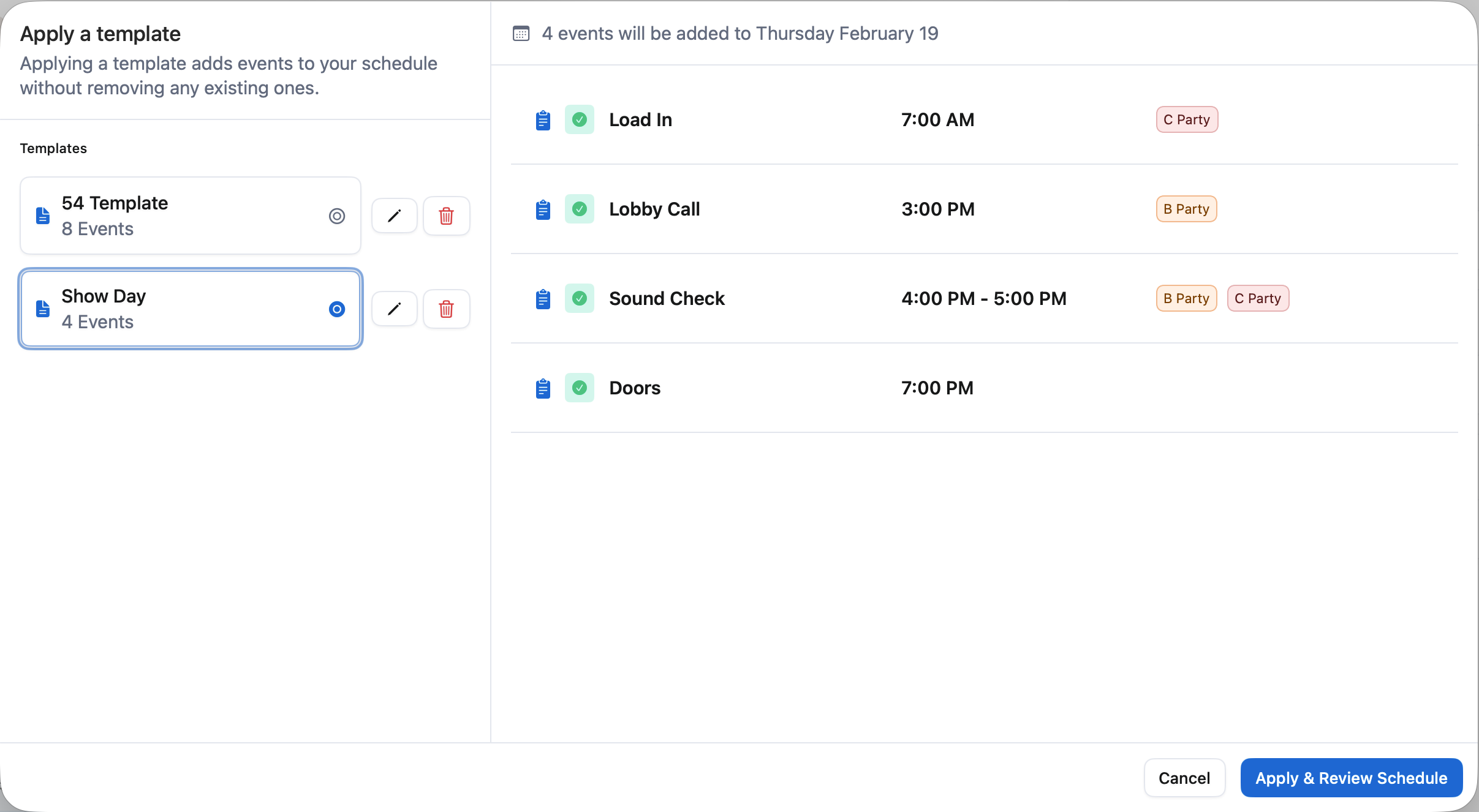
- From here, select the template from the left menu that you wish to apply. The window will give you a preview of the template. Once you’ve selected the template you want to use, click Apply & Review Schedule.
- Your template has NOT been applied to the schedule yet. You will notice any events that came from the template will have a blue clipboard icon next to them, and they will be overlaid with any events that were already added to that days schedule.
- You can make any modifications to the schedule as needed, and when you’re ready to go, press Save Schedule in the lower right corner.
Edting a Schedule Template
Once a template has been saved to your tour, you can always go back and modify the schedule template. To edit a template:- Click Daysheets in the far top left hand corner of your screen, next to the icon in the top left corner. Then click Settings.
- Click Templates, and then click the pencil icon on the template you wish to modify.
- Once you’ve modified your template, click Save Changes in the lower right.
Please note that editing a schedule template will NOT update previous schedules that use this template. Applying this template to future schedules will reflect your changes to the template.